Choose which main modules appear in Repair Pilot’s sidebar and arrange their order to suit your team. Module visibility is a navigation preference; it does not replace user roles or permissions.
Before you start #
- Decide which areas your team needs in the main navigation.
- Use an account with permission to manage settings.
- Dashboard and New Job stay at the top; Parts and Stock are grouped under Inventory.
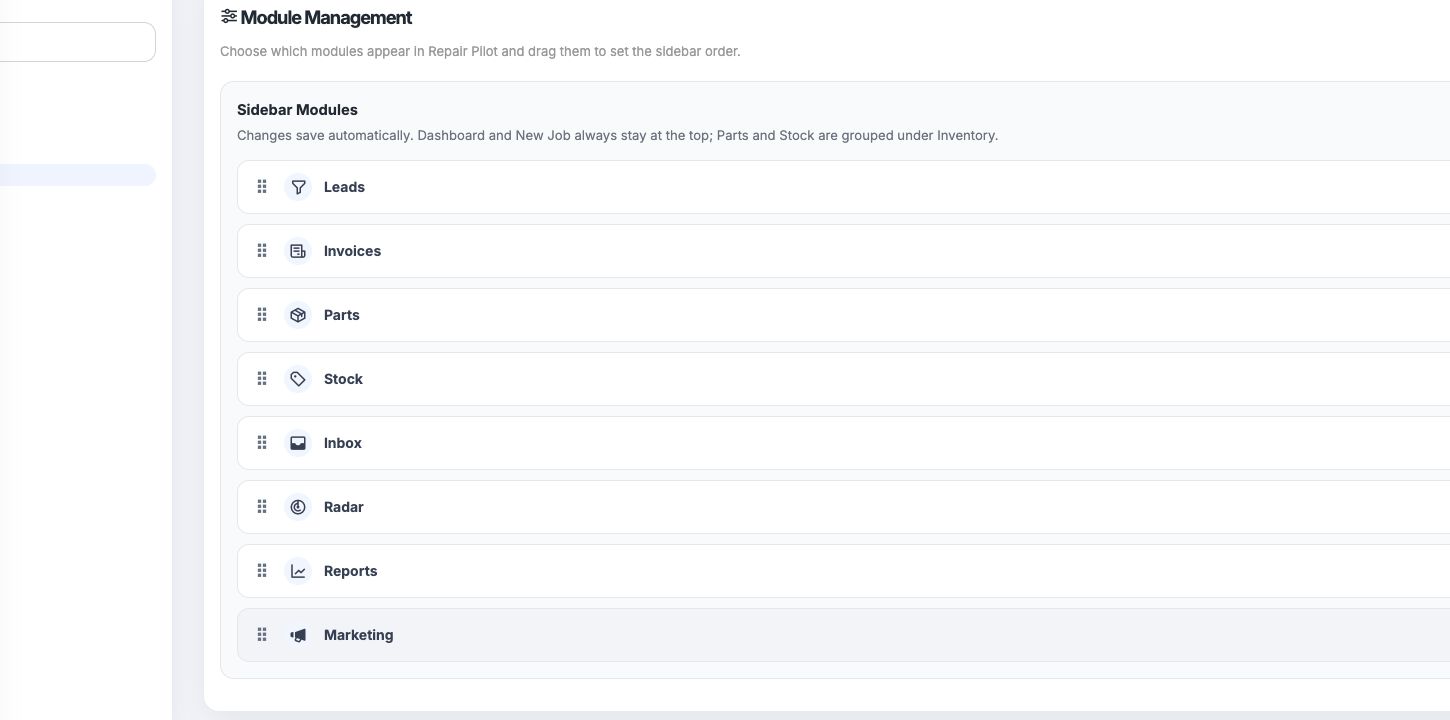
Choose which modules appear #
Use each module’s checkbox to enable or disable it in the sidebar. The available modules include Leads, Invoices, Parts, Stock, Inbox, Radar, Reports and Marketing.
Arrange the sidebar #
Drag a module using its handle to change the order. Dashboard and New Job stay at the top, while Parts and Stock remain grouped under Inventory.
Review your navigation #
Changes save automatically. Check the sidebar after updating the settings to confirm it shows the areas your team expects.
What happens next #
The sidebar reflects the enabled modules and your chosen order. This setting controls which areas appear in the main navigation.
Common questions #
Do I need to save? #
No. Module changes save automatically.
Can I move Dashboard or New Job? #
No. They remain at the top of the sidebar.
Does hiding a module change staff permissions? #
No. Use Roles & Permissions to manage access; this setting controls the main navigation.