System fields are Repair Pilot’s built-in fields. You can change their display labels, availability and order for supported modules without creating a separate custom field.
Before you start #
- Decide which fields staff need to see and whether any labels should use your team’s wording.
- Use an account with permission to manage settings.
- Field visibility and order changes save immediately.
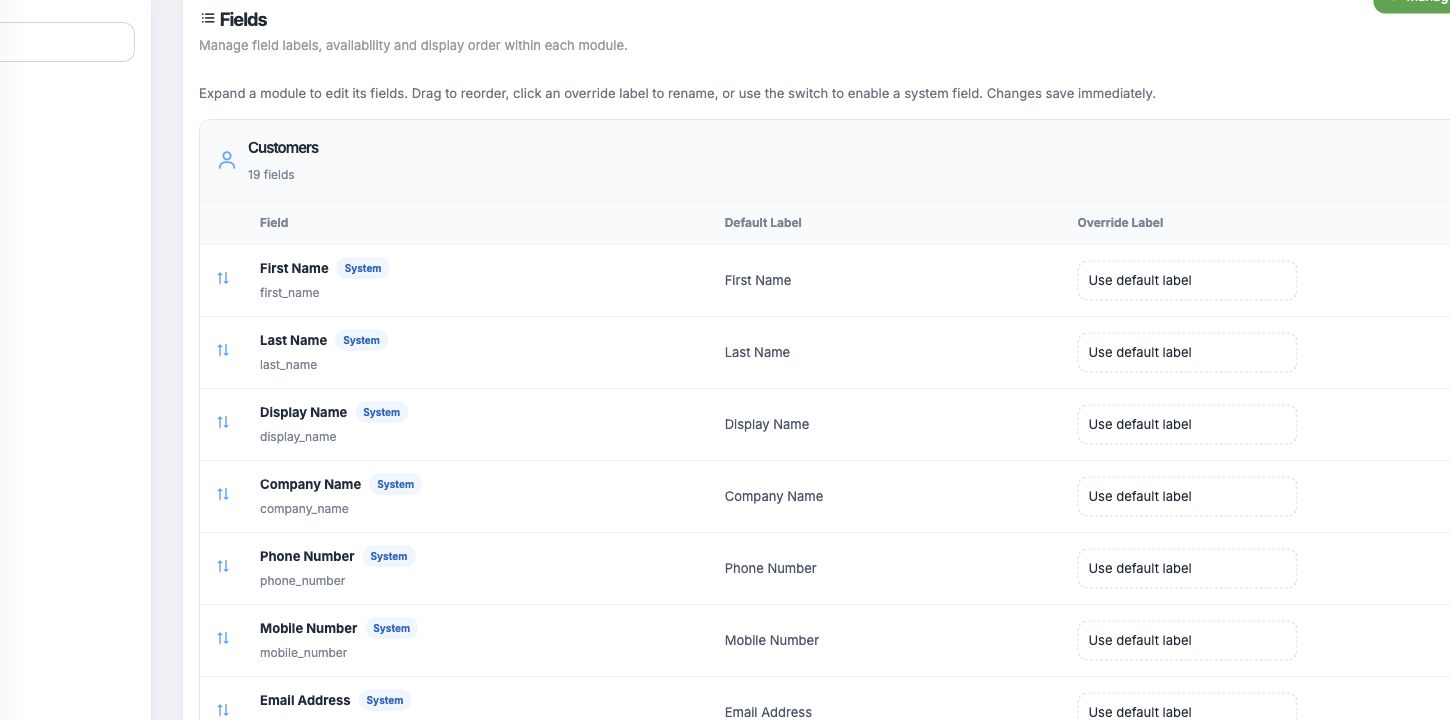
Expand a module #
Open the module you want to adjust, such as Customers, Items, Jobs, Leads, Parts or Stock. Its built-in fields appear with the field name and default label.
Change a label or availability #
Enter an Override Label to display a different name, or leave it set to Use default label. Use the field switch to enable or disable a field. Changes save immediately.
Reorder fields if needed #
Drag a field by its handle to change its display order. Ordering saves immediately, so review the result before moving to another module.
What happens next #
The selected modules use the updated labels, visibility and order. These settings customise built-in fields; use Custom Fields when you need to capture new information.
Common questions #
Can I create a new field here? #
No. Use Custom Fields to add information beyond the built-in fields.
Do I need to press Save? #
No. Labels, switches and ordering save immediately.
Can I restore a built-in label? #
Clear the override so the field returns to “Use default label.”