Update the default message text used for customer communications such as check-in receipts, invoices, quotes and portal messages. Insert data fields where you want Repair Pilot to fill in record-specific values.
Before you start #
- Decide which communication you want to change.
- Use an account with permission to manage settings.
- Keep any wording and customer instructions ready before editing.
Open Default Email & SMS Text #
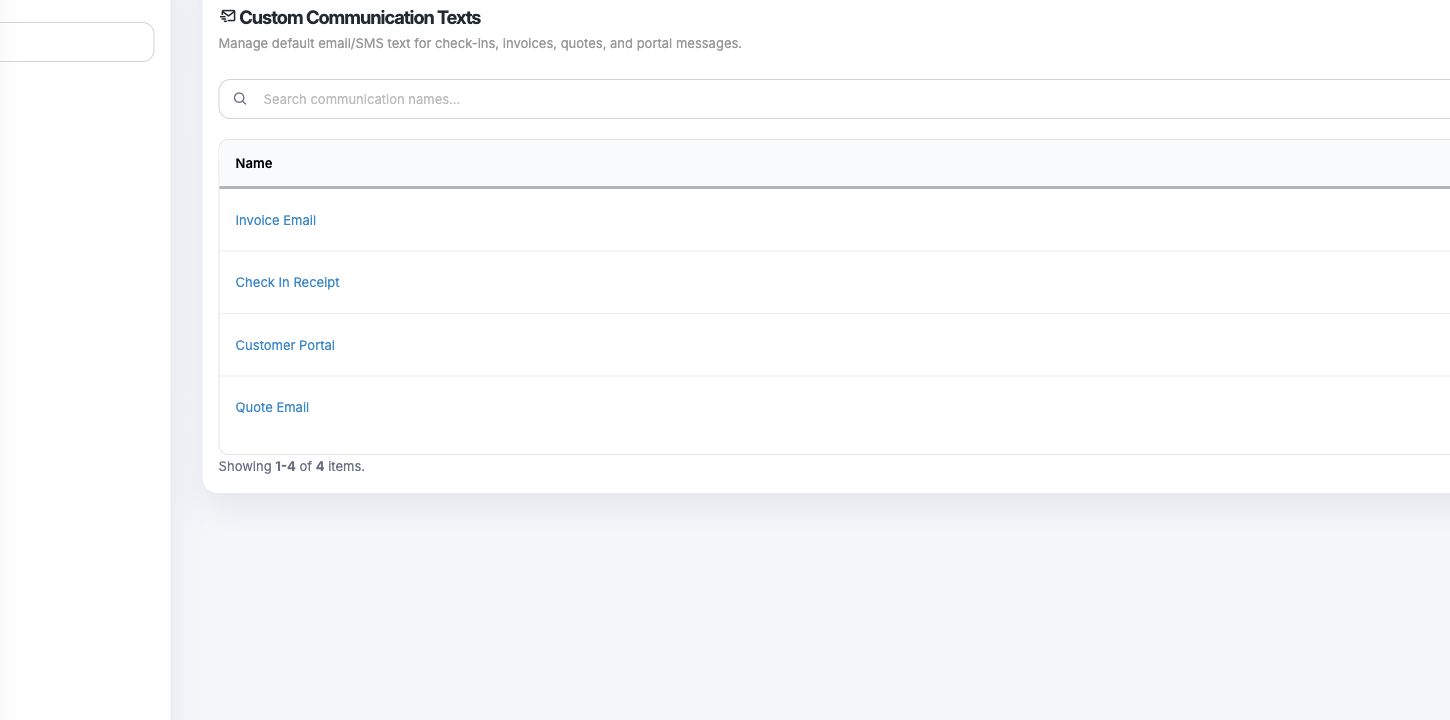
In Settings, open Messages & Notifications and select Default Email & SMS Text. The list shows the available communication types.
Choose a communication #
Select the message you want to edit, such as Check In Receipt, Invoice Email, Quote Email or Customer Portal.
Edit the message #
Update the message text in the editor. Type # to search for and insert a data field; Repair Pilot replaces inserted fields with their values when the message is sent. Keep the message clear if it may be reused in different customer situations.
Save and review #
Save the communication text, then review the selected message again to check its wording and inserted fields.
What happens next #
The updated text is used as the default for the selected communication. Inserted data fields are filled with their matching values when the message is sent.
Common questions #
What does typing # do? #
It opens the data-field search so you can insert a value that Repair Pilot fills in when sending.
Does this edit every email template? #
No. This setting manages default communication text. Reusable email templates are managed separately.
Which messages can I change here? #
The current list includes Invoice Email, Check In Receipt, Customer Portal and Quote Email.