From time to time, you will need to reset a password for a user. Repair Pilot gives you several way to do this.
Go to the Manage Users Page #
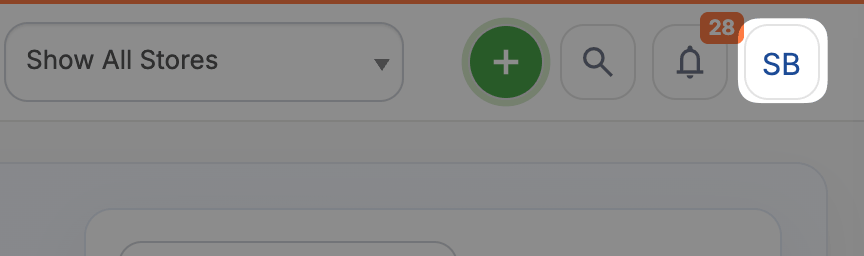
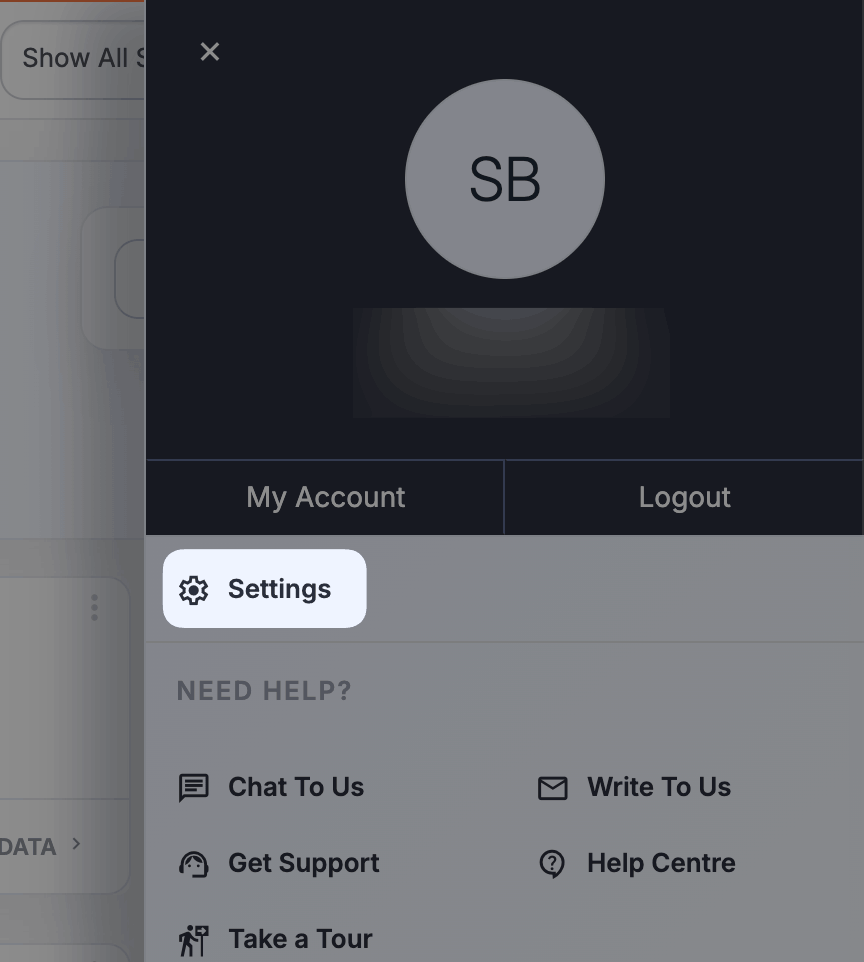
Head to the Settings page and find the User Settings section and click on Manage Users.

Find the User #
Find the user you wish to reset the password for by locating them in the grid, or searching for the user using the search box.

Send a Reset Password Link #
Once you have found the User, click on the button with … to bring up the user options, then click on Send Password Reset Email – clicking Okay to confirm.


The user will then get an email to the registered email address on their account, they simply click this and follow the instructions to setup a new password. This link expires after 1 hour, after-which, another reset email link will need to be sent.
Manually Set the User’s Password #
If you are a Super Admin, you can manually set another User’s password. To do this, follow the instructions above, but instead of clicking on Send a Reset Password Email, instead, click on View to open the User’s account.

Enter the New Password #
Scroll down to the User Access section and find the text box labelled New Password. Enter the new password and click the green Save button at the bottom of the page.
NOTICE – We only recommend doing this as a temporary measure (e.g. the user does not currently have access to their email account), and suggest the user change the password to something they have set themselves as soon as possible.