Add your business branding and a short message to the Repair Pilot sign-in screen. The live preview helps you review changes before saving.
Before you start #
- Prepare a logo or background image if you want to upload one.
- Choose colours that keep the sign-in text easy to read.
- Use an account with permission to manage company settings.
Set the login message #
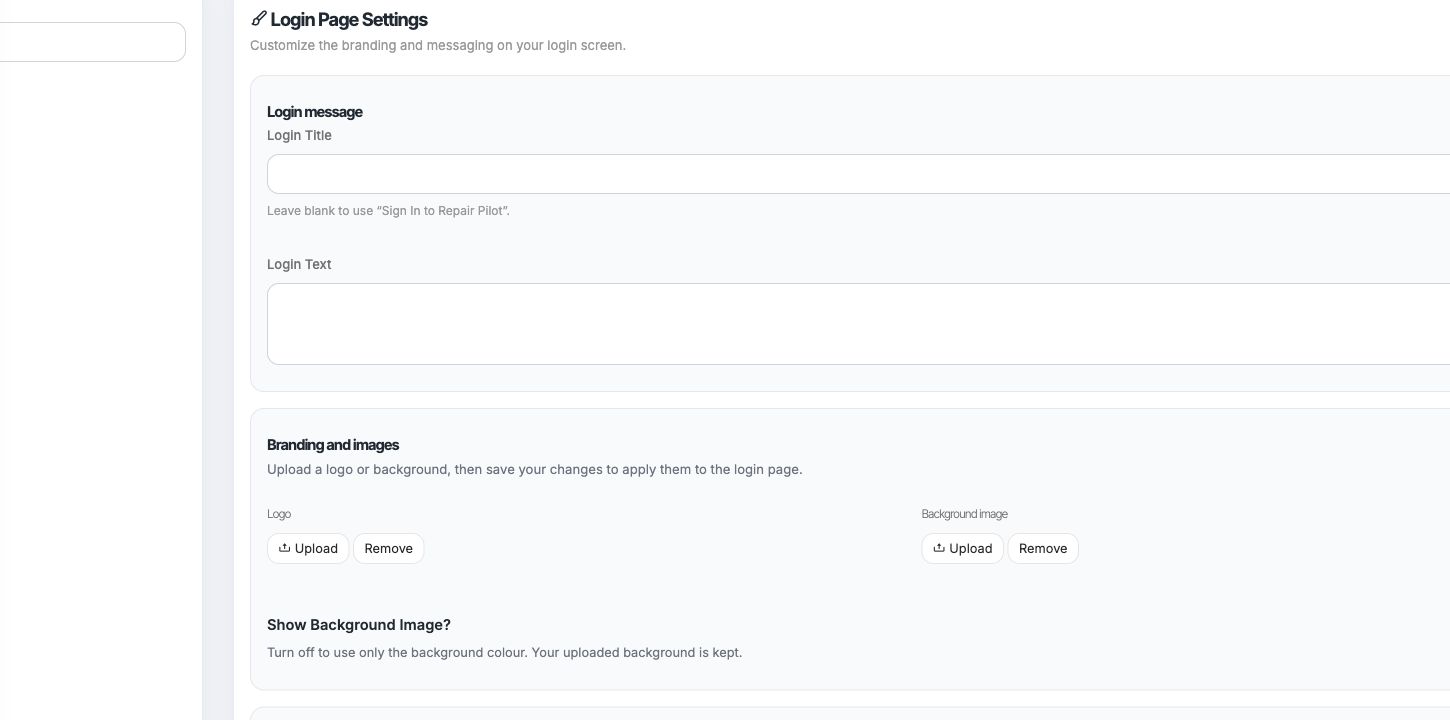
Enter a Login Title and optional Login Text. Leave the title blank to use the default “Sign In to Repair Pilot” heading.
Add branding and choose colours #
Upload a logo or background image if required. Use Show Background Image? to display or hide the uploaded image; turning it off keeps the upload saved. Set the background, container and text colours, or clear a colour to return to the default.
Check the preview and save #
Review the live preview, then select Save Login Page to apply the changes.
What happens next #
The saved branding and message appear on your Repair Pilot login screen.
Common questions #
What happens if I leave the title blank? #
Repair Pilot uses the default “Sign In to Repair Pilot” title.
If I hide the background image, is it deleted? #
No. The screen says the uploaded image is kept when display is turned off.
Can I undo a colour choice? #
Clear the colour field to use the default login-page colour.